




Rhythm and movement are essential when it comes to creating compelling narratives. These are delivered handily by the brand new Odes Kontakt instrument – another inspiring partnership between Native Instruments and Evolution Series.
Complementing the multi-dimensional textures of Fables and the evolving tones of Lores, Odes uses the series’ familiar interface to bring layered, cinematic rhythm to the fore.
With Odes, you can create tempo-synced loops that bring your scores to life with a unique combination of regional folk music and synthesized elements, making it an essential addition to this collection of film, TV, and game scoring tools.
In this tutorial, we’ll show you how to craft a compelling rhythmic score using Odes in your DAW.
Jump to these sections:
To follow along with this guide, you’ll need Native Instruments Odes, which is compatible with both Kontakt 8 and Kontakt Player. If you don’t have Kontakt Player yet, you can download it today as part of the free Komplete Start bundle.
How do film composers create rhythmic tension?
A soundtrack composer has a broad array of tools when it comes to creating rhythmic tension, with some of the more commonly used techniques including:
- Syncopation (placing accents on weak beats or off-beats)
- Employing polyrhythms or cross-rhythms (layering two or more conflicting rhythmic patterns)
- Using ostinati (repeating short rhythmic phrases)
- Increasing the number of rhythmic layers to add intensity
For example, Ludwig Göransson’s Rainy Night In Tallinn from the Tenet soundtrack is a piece that employs syncopation, ostinati, and an evolving variety of rhythmic patterns to create a tense, propulsive atmosphere.
These are some of the ways that film composers create rhythmic tension.
What is the best Kontakt library for scoring rhythmic textures?
Odes is a Kontakt instrument designed specifically for creating detailed, organic-feeling rhythmic textures. It is a fantastic choice for scoring rhythmic textures.
Another inspiring library Native Instruments offers is Heavyocity Rhythmic Textures, which focuses on string-based rhythmic textures for cinematic score creation.
If you’re looking for something free, check out these cinematic sound libraries.
Creating a rhythmic score with Odes
1. Syncopated tempo-synced loops
Create a MIDI track in your DAW and load up Kontakt. Select Odes in the Library, then double-click the Train Tracks preset to load it up

With the keyboard icon at the bottom right-hand corner of Kontakt’s interface active, you can see the key range of this preset, which is A1 – B4. If we play any of these notes, we’ll hear that the preset gives us a rhythmic woodwind and string pattern.
Let’s start with an A2 note. We’ll use velocity values of 100 for everything in this walkthrough. We’ll begin by sequencing the note for four bars.

Let’s see what happens when we sequence another note offset from the beat. Add a G3 on the final eighth note before the third bar.

Because this new note is offset from the beat, the two rhythmic loops playing together create an interesting new rhythm that develops the initial musical idea, adding a sense of urgency.
Let’s expand on this idea. Extend the existing notes to the start of bar nine, and add an F3 note on the final 16th note before the fifth bar.
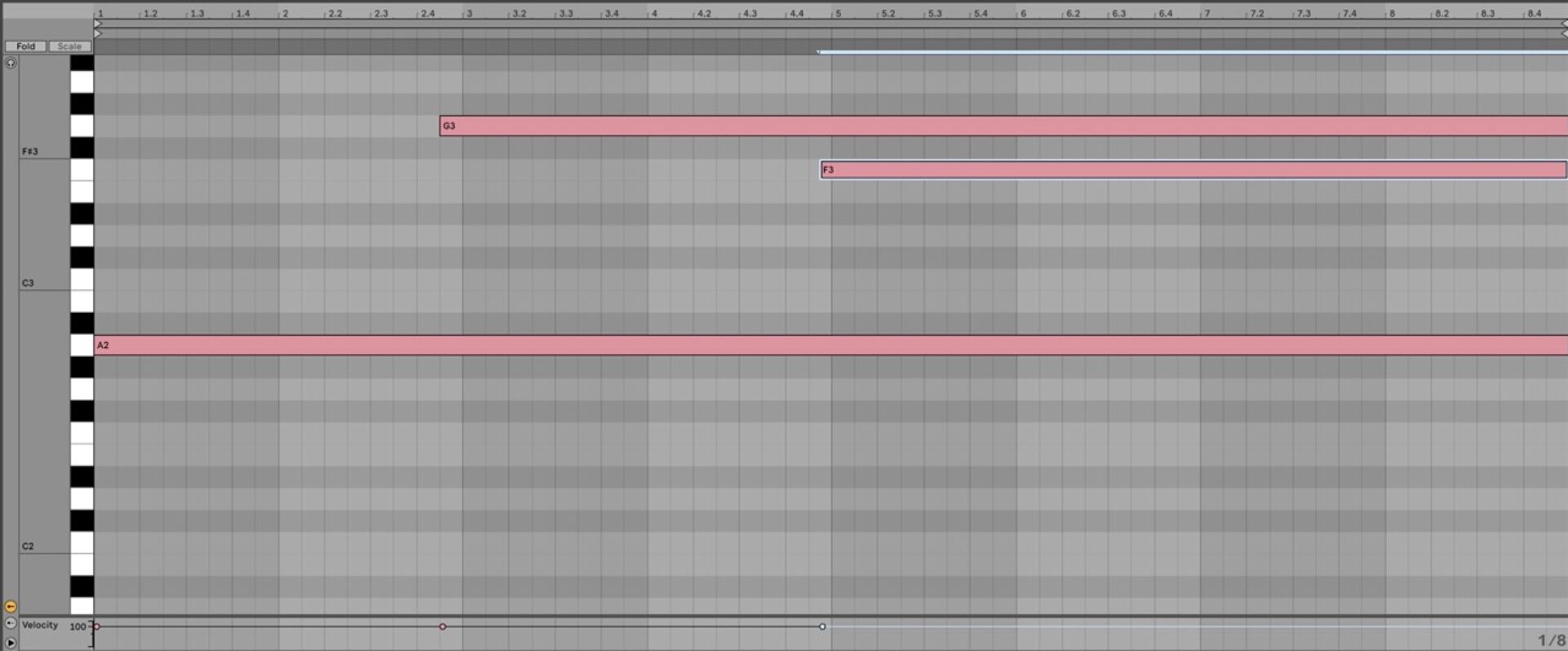
This further develops the rhythm, creating a feeling of increased intensity.
2. Reinforcing the rhythm
Next, we’ll develop the sound differently, by adding notes on the beat at a low register.
Add a C2 note at the start of bar seven, then add a D2 note at the start of bar eight.

As these notes play on the beat, they don’t add syncopation, but instead play with the same timing as our original A2 note, adding intensity in a new way by beefing up the low end.
Let’s carry on with this musical idea. Extend the A2, F3, and G3 notes to play for 16 bars, adding an A1 note that plays from bar nine.
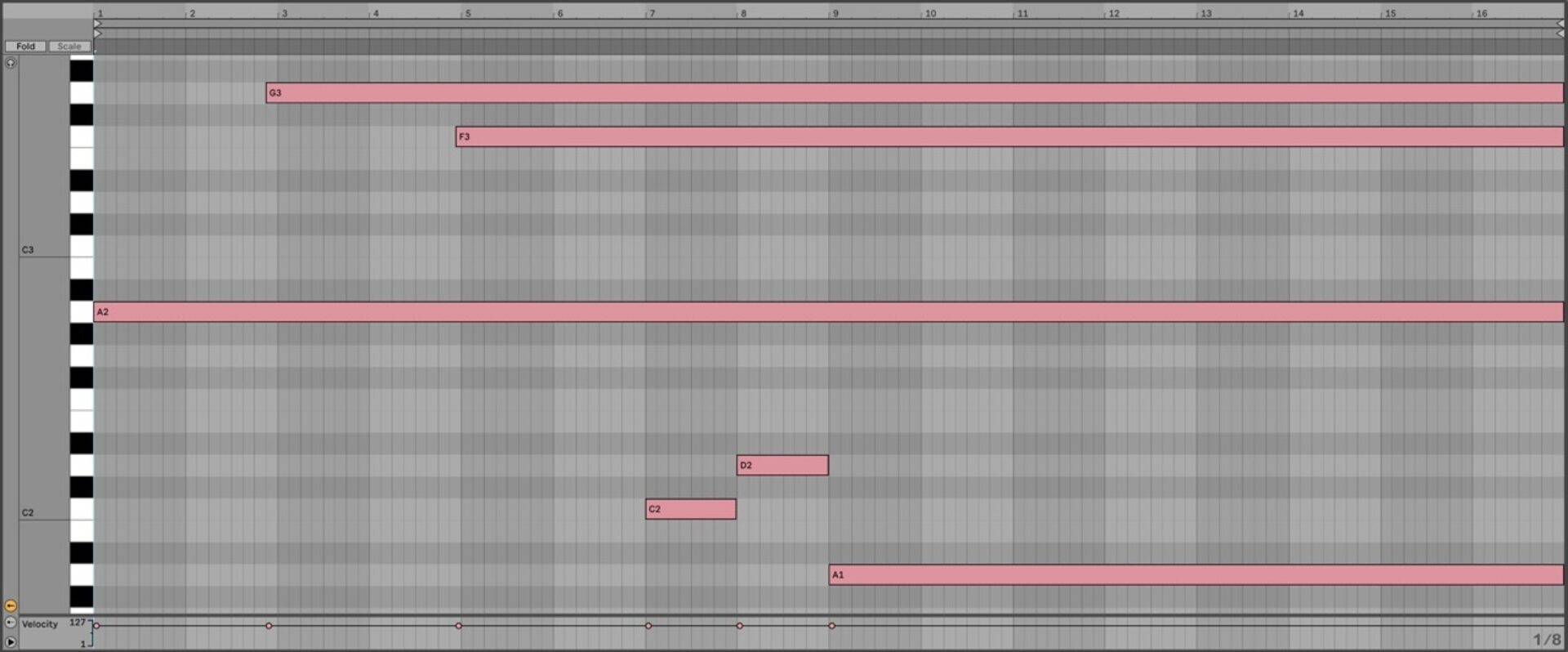
The A1 reinforces the original A2 note, and with nothing else changing from bar nine onwards, we have space to introduce another musical idea.
3. Using polyrhythm
Polyrhythm is the simultaneous use of two or more rhythms. For example, a 5/4 rhythm over a 4/4 rhythm would be considered polyrhythm because the two patterns divide the same span of time into unequal numbers of beats, creating a tension between conflicting rhythmic groupings.
We can use Odes to introduce polyrhythms into our piece. On a new MIDI track, add Kontakt, select Odes, and this time load up the City Wide preset.

Odes patches consist of three instruments, visually represented by three ominous floating monoliths, and each of these uses three rhythmic Layers to create its animated textures.

Let’s simplify the City Wide preset to get a better idea of how this works. Use the power buttons on instruments two and three (Pads and Nyckelharpa) to deactivate them.

Now we’re using just the Horse Fiddle instrument on the left. Let’s hear how it sounds when we play it on A4.
We can examine the Layers Horse Fiddle is using by clicking its arrow-shaped levitating monolith, which brings up the Layer Editor at the bottom of the interface.

Here we can see the instrument’s three Layers, Stac (b) Quarter, Sus (c) Quarter, and Shorts (c) Short. We can use the eraser icon to clear Layers, so let’s clear the top two Layers, leaving us with just Shorts (c) Short.

Click on the spyglass icon to the right of where it says Shorts (c) Short to bring up the Layer browser. In the list of available Layers, double-click Stac (e) Triplet to load it up.

As its name suggests, Stac (e) Triplet uses a triplet rhythm.
Let’s sequence this over our 4/4 rhythm to hear how it sounds. Copy the sequence we’ve used here, which uses a rising pitch to increase tension.

The issue we have now is that after bar 17, the Train Tracks part ends abruptly, so let’s use volume modulation to give our short piece a more satisfying conclusion.
4. Using the modwheel to create a fade
Extend the A2 note of the Train Tracks part to play until the end of bar 20.

In Odes, the modwheel controls volume, so it can be used to create swells, or in this case, fades. In your DAW’s MIDI editor, add modwheel automation that is full for the first 16 bars. Then gradually fade it between the start of bar 17 and the end of bar 20.

This helps our piece resolve in a more satisfying way. It leaves the triplet Horse Fiddle to close things out.
Start creating rhythmic scores with Odes today
In this tutorial, we’ve seen how you can use Odes to develop rhythmic musical ideas to create a compelling score that can enhance visual storytelling.
Open up Odes to create your own scores brimming with rhythmic tension.
Related articles
-
Behind the synth: A. G. Cook on stacked sawtooths and the creation of Super*Saw
Explore the extremes of stacked sawtooth waves with Super*Saw, a new synthesizer co-created with A. G. Cook. Learn how to…
-

Inside the evolution of orchestral sampling: an interview with ProjectSAM
Discover how ProjectSAM’s Lineage Series uses NKS and smart features to change orchestral sampling. Plus, save on instruments in our…
-

How New Constellations turn emotion into sound with Massive X
Go inside the studio with New Constellations. Learn how they use Native Instruments gear, happy accidents, and lifelong friendship to…
-

Citizen Kain on building emotion and space with Replika
Citizen Kain explains how Replika helped shape the rhythm, tension, and emotion behind his debut Eversun Records single “Moments.”…
-

The organic precision behind Calcou’s Anjuna release featuring Reaktor
Calcou shares how Reaktor, Monark, and Super 8 shaped the creative balance and live energy behind their new duo EP,…
-

14 NKS instruments that will change the way you create music
Discover 14 NKS instruments to freshen up your workflow. From lo-fi tape synths to cinematic strings, shop the Native Instruments…
-
Parallelle on crafting living basslines with Reaktor and TRK-01
Parallelle share how Reaktor and TRK-01 shape the bass and warmth in 11th Avenue, balancing analog depth with modern control.
-
Where will your sound lead you? Explore the Native Instruments Summer Sale
Save 30% on instruments, effects, and sounds in our Summer Sale. Find the tools to keep your tracks moving and…